
Daily operations
Turn recurring checks into visible follow-up
Check for overdue updates, unsigned rate confirmations and yard visits that need review. See the reason and the person responsible for following up.
At a glance
How it works
- Choose a rule
Start with weekday updates, unsigned confirmations or yard detention review.
- Preview the findings
Set the scope, timing and owner, then check which shipments qualify.
- Review or create tasks
Keep suggestions for staff review, or enable automatic assigned tasks.
Your team controls the action. Rules do not send messages, change load status or add charges.
Read the detailed guide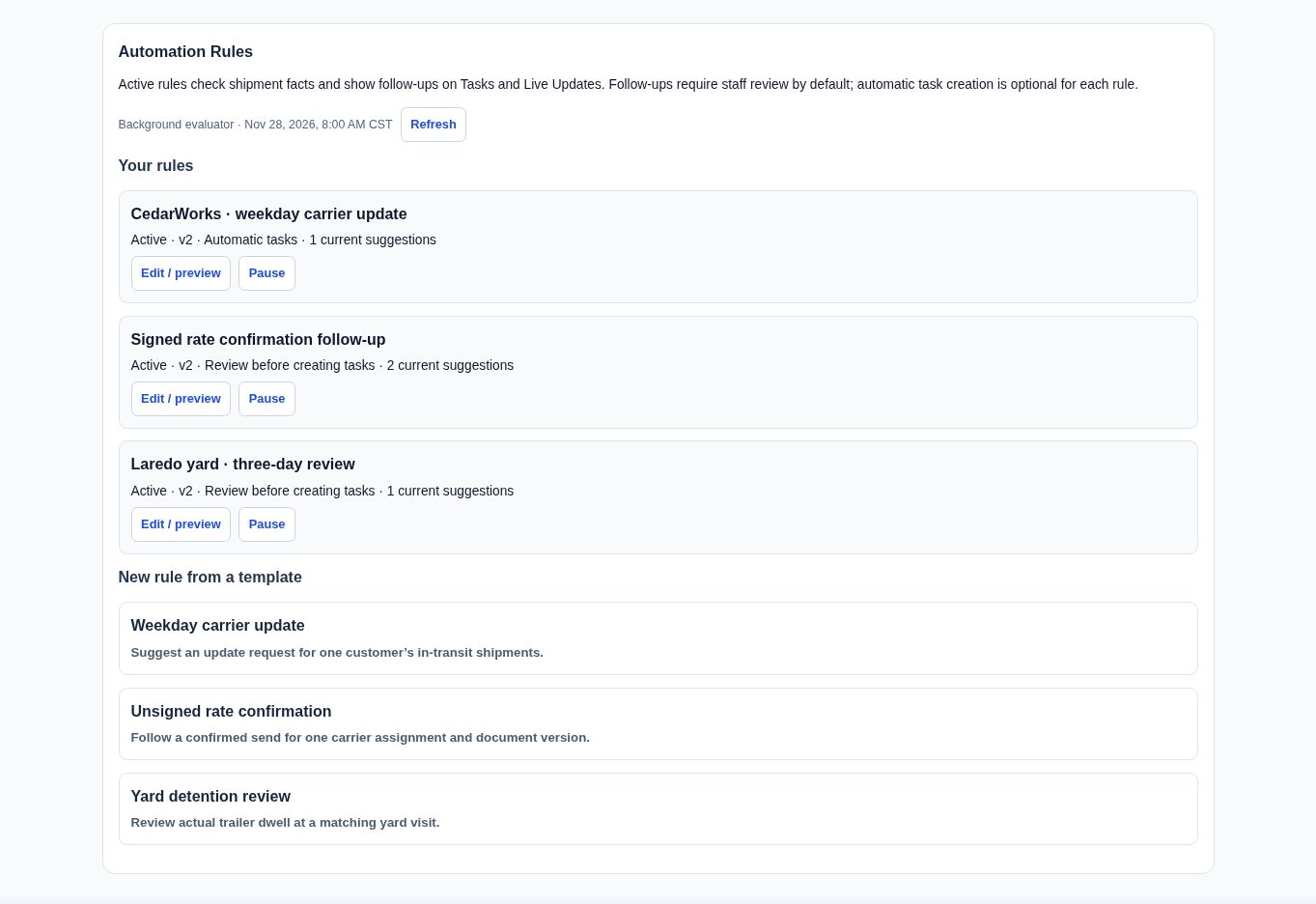 Enlarge screenshot
Start with a supported rule
Automation Rules currently offers three templates. Weekday carrier update suggests a request for a selected customer’s in-transit shipments at a chosen weekday time. Unsigned rate confirmation follows a confirmed send for a particular carrier assignment and document version. Yard detention review checks a matching broker or transload yard visit after its actual arrival.
For example, set a Laredo yard review after three local calendar days, or follow up 24 hours after a rate confirmation was sent without a signed return. A yard finding prompts a review of the visit; it does not establish a detention charge.
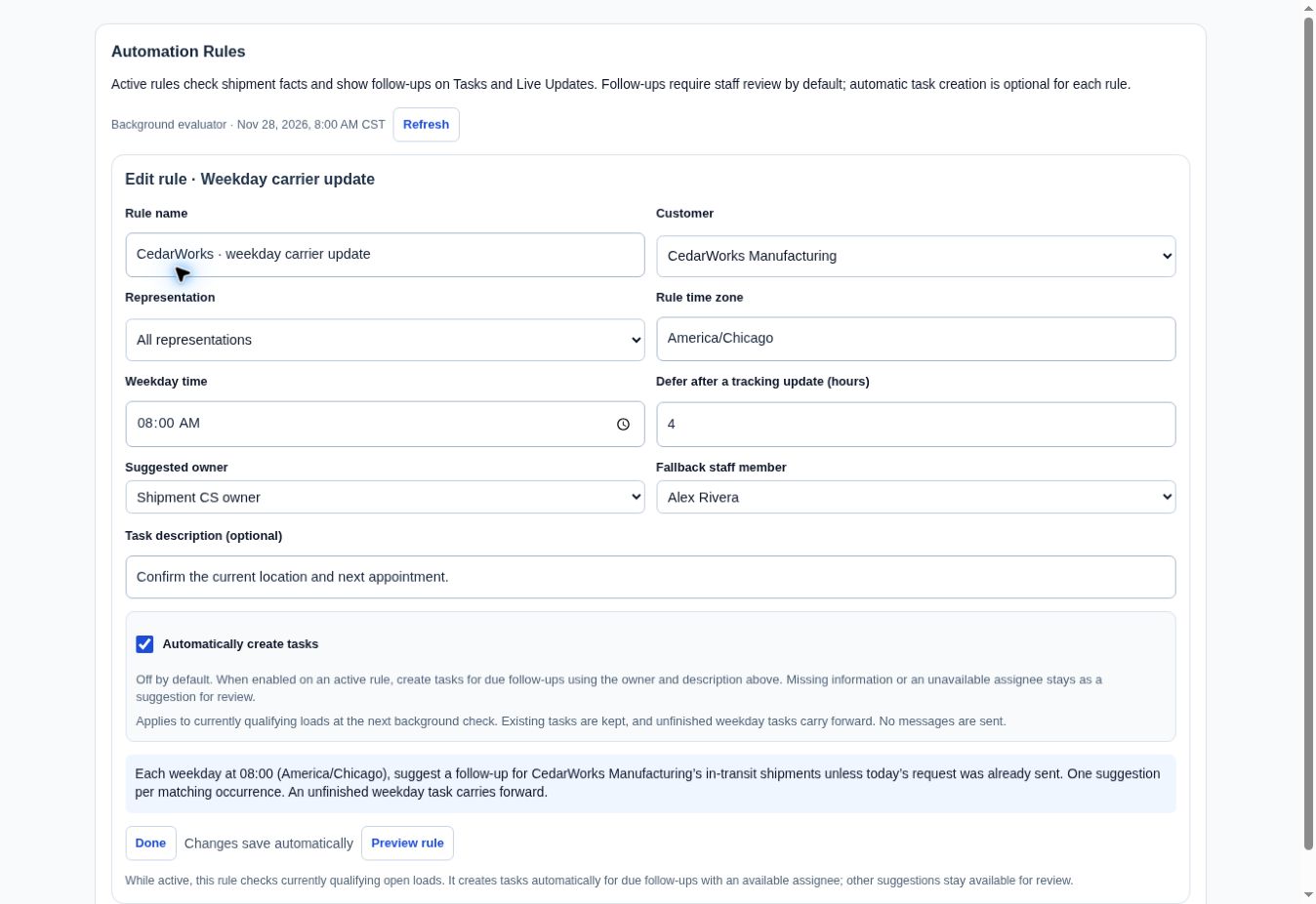
Choose the scope, clock and responsible person
Rules can be scoped by customer and by Standard or Agency representation, including a selected agency partner. Choose the rule’s time zone and the applicable time or threshold. Yard rules distinguish elapsed hours from local calendar days.
Use the shipment’s customer-service owner, with a fallback staff member, or name a particular employee. For weekday updates, a recent tracking update can defer the follow-up, and a request already sent that day is taken into account. Add a task description to explain the next step.
 Enlarge screenshot
Preview the findings before activating
Preview a rule against current shipment facts before activation. The results identify the shipment, the reason for the finding, the due time when available and the suggested owner. Missing information is shown separately so staff can repair the record.
Save a draft while deciding on the scope, activate the rule when ready, or pause an active rule. The settings screen shows the latest background check and the current suggestions.
Decide whether to create tasks automatically
By default, active rules suggest follow-ups for staff to review and turn into tasks. Automatically create tasks is an optional setting on each rule. When enabled, a due follow-up with an available assignee can become a task at the next background check, including loads that already qualify.
Missing information or an unavailable assignee remains a suggestion for review. Existing tasks are kept, and an unfinished weekday task carries forward. Staff can find the follow-up in Tasks and Live Updates, then use task notes to record their work.
Keep the operational decision with your team
A task makes the next action visible. The assigned employee still checks the shipment, contacts the carrier or reviews the yard timing. These rules do not send messages, change shipment status or add charges.
For FS-2048, a weekday rule can bring the Laredo shipment to Alex’s attention. Alex uses Request carrier updates, reviews the recipient and message, then checks the carrier’s response before sharing an update with the customer.
Common questions
Can I build any kind of automation?
The current feature uses three configurable templates. A general-purpose workflow builder and automatic outbound messaging are outside this rule workflow.
Will an active rule send the carrier an email?
No. It produces a suggestion or, when enabled, a task. Staff use the separate review-and-send workflow for carrier update requests.
Can different agency accounts use different rules?
Yes. Scope a rule to Agency representation and a particular agency partner, with the customer and owner settings appropriate to that work.