
For your carriers
Let carriers work from the load they are moving
The carrier portal gives dispatch contacts a place to find assigned shipments, communicate with your team and return paperwork. The same sample load shows what the carrier sees before staff share anything with a customer.
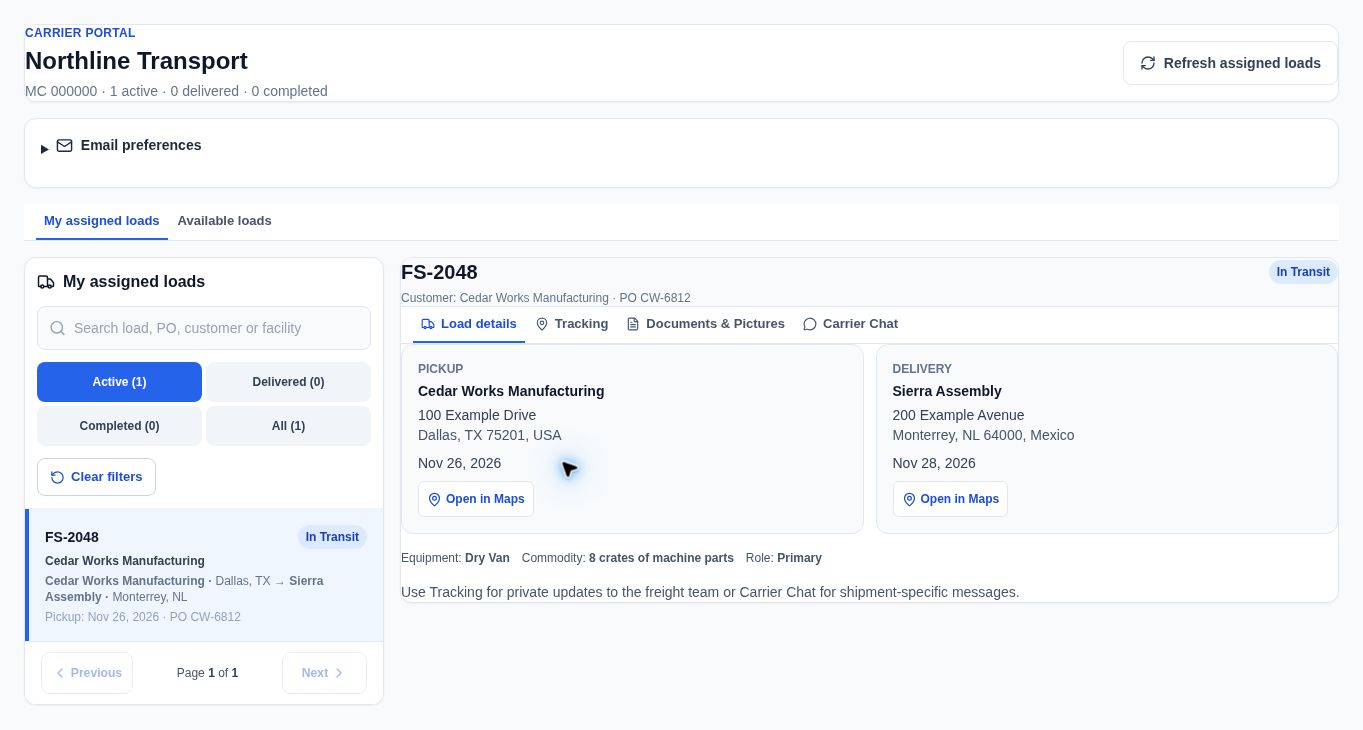
Find the assignment and its details
Carrier users can search their assigned loads and open the shipment’s pickup and delivery information. The detail view includes the facility, address, scheduled dates, equipment, commodity and the carrier’s role on the shipment.
A cross-border load may involve more than one carrier. Staff manage those assignments in FreightScale; each carrier’s access follows its own assignment.
 Enlarge screenshot
Report a location or delivery estimate
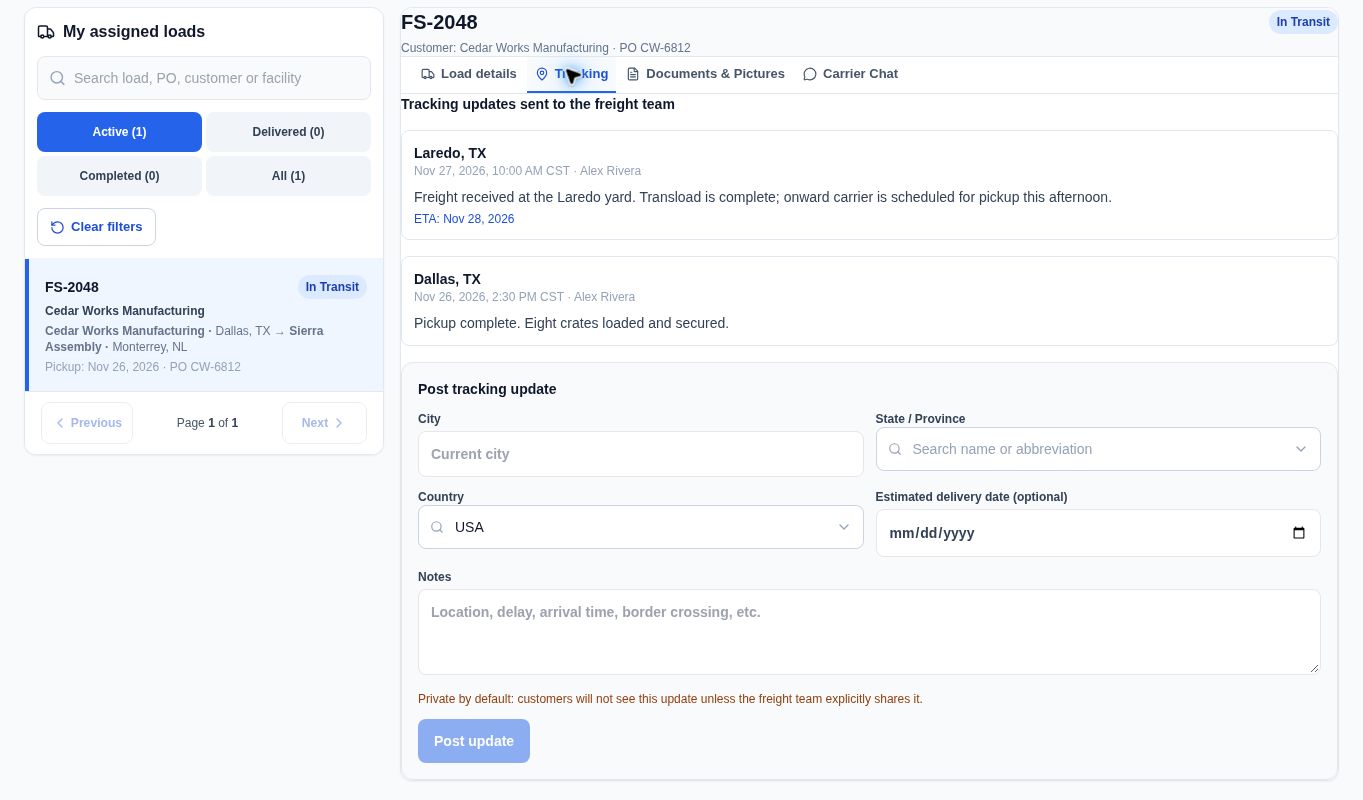
The Tracking tab lets the carrier enter its current city, state or province, country, optional delivery date and notes. Previous reports remain visible in the carrier’s shipment thread.
Carrier reports are private from customers by default. The freight team can review the information, resolve a discrepancy and explicitly share a suitable tracking update with the shipper.
 Enlarge screenshot
Upload documents and load pictures
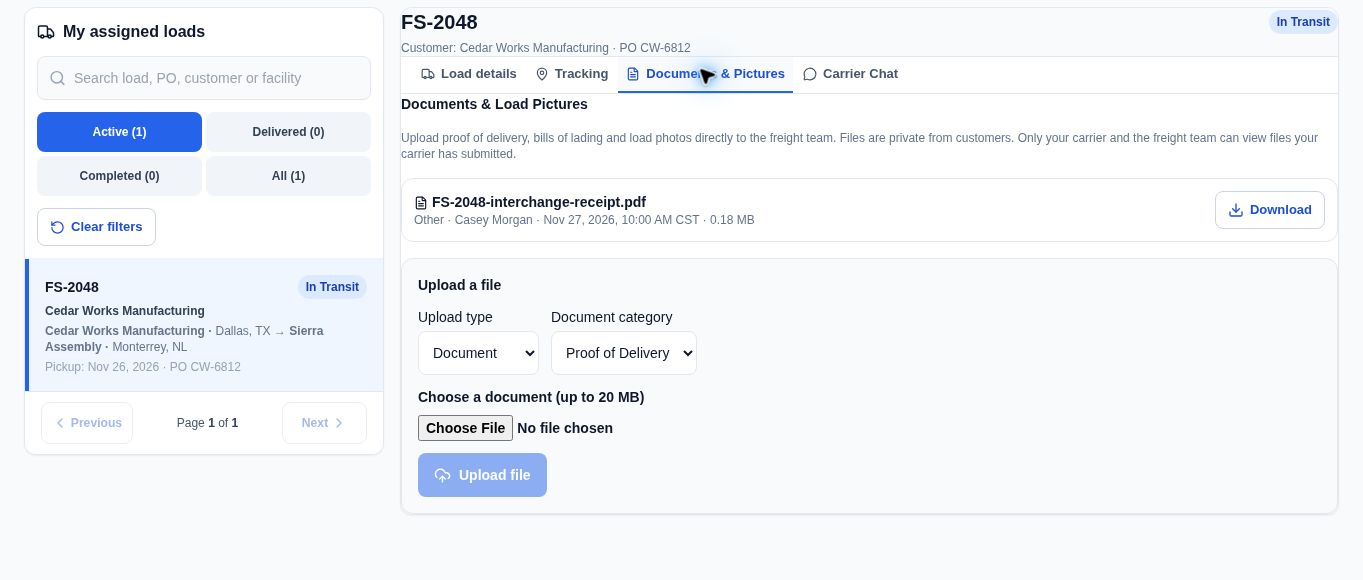
Carriers can upload a POD, bill of lading, scale ticket, delivery receipt or other document, and can upload load pictures separately. In this example, Northline returns the interchange receipt for FS-2048.
The upload screen makes the audience clear: the carrier and freight team can see the carrier’s submitted files. Customer sharing is a separate staff decision. The email update-response form has a different purpose and does not accept attachments; use this portal or reply to the requesting email for paperwork.
 Enlarge screenshot
Ask dispatch in the shipment conversation
Carrier Chat keeps questions and answers with the assignment. Multiple authorized contacts can work from the carrier’s portal, and individuals can choose whether to receive supported email notifications.
For a quick check call, staff can also email a secure update-response link. The recipient can submit a single response without creating a portal account.
Show available freight to your carrier network
The Available loads view lets eligible carriers see postings the brokerage has made visible to them. Staff can target individual carriers, carrier groups or all active carriers, and set an expiration for the posting.
Carriers can opt in to emails about new visible postings. This is a way to offer freight to your own carrier network; it does not imply distribution to an outside public load-board marketplace.
Common questions
Does every carrier need a portal account to answer an update request?
No. The emailed update link opens a limited response form without a sign-in. The portal is useful for ongoing load access, conversations and uploads.
Does posting an available load assign the carrier?
No. An available-load posting and a carrier assignment are different records. Staff still manage the dispatch assignment.