
For your customers
Give customers a clear view of their freight
A customer can look up a shipment, read the update your team has shared and ask a question in the context of that load. Follow Cedar Works Manufacturing as its sample shipment moves through Laredo.
Start with the shipment and its latest update
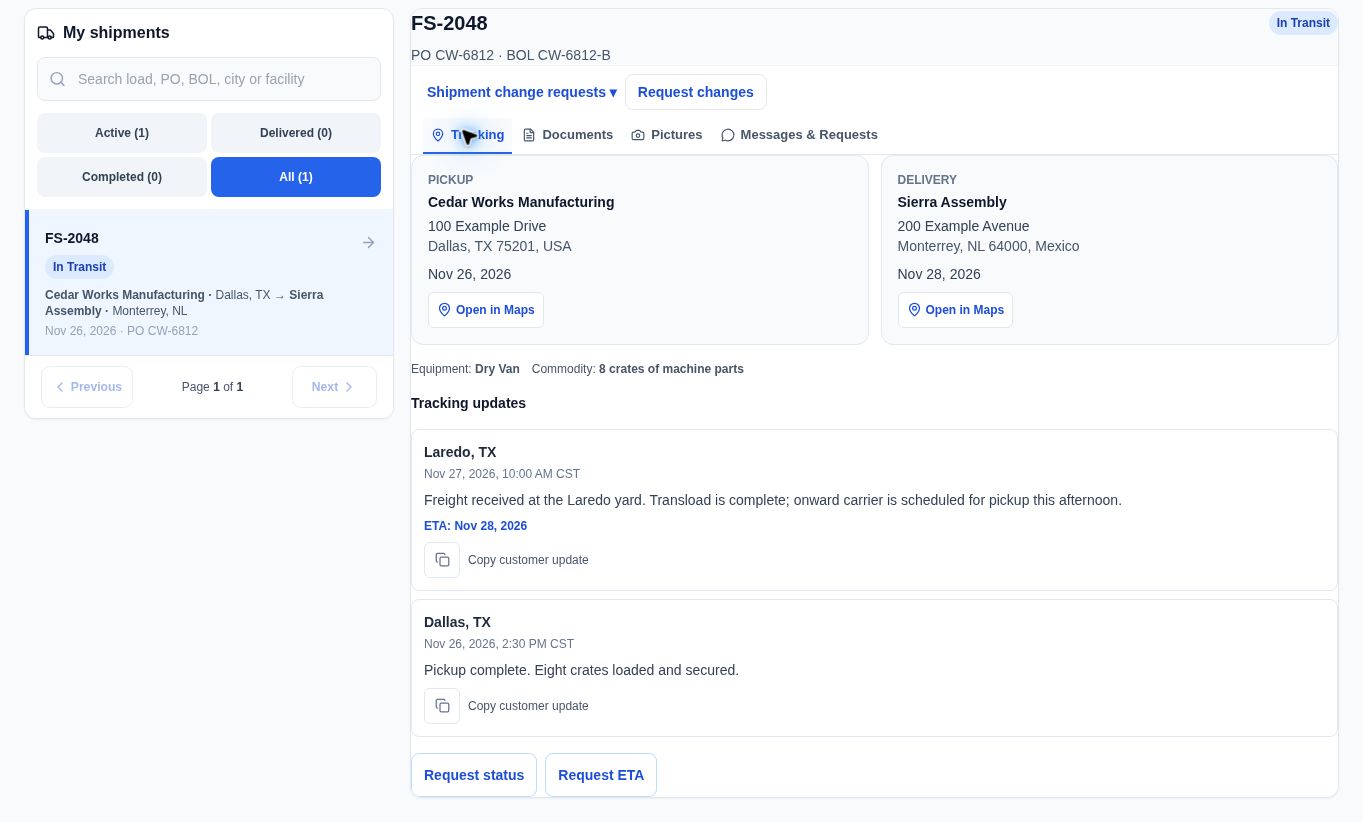
Customer users see shipments belonging to their company. They can search the list and switch between active, delivered and completed freight. Opening FS-2048 shows its pickup and delivery facilities, reference numbers, equipment and commodity.
The Tracking view shows updates staff have marked for customer sharing, including the reported location, date, notes and available delivery estimate. This gives the shipper a useful answer to “Where is my freight?” before it needs to call dispatch.
 Enlarge screenshot
Keep questions attached to the load
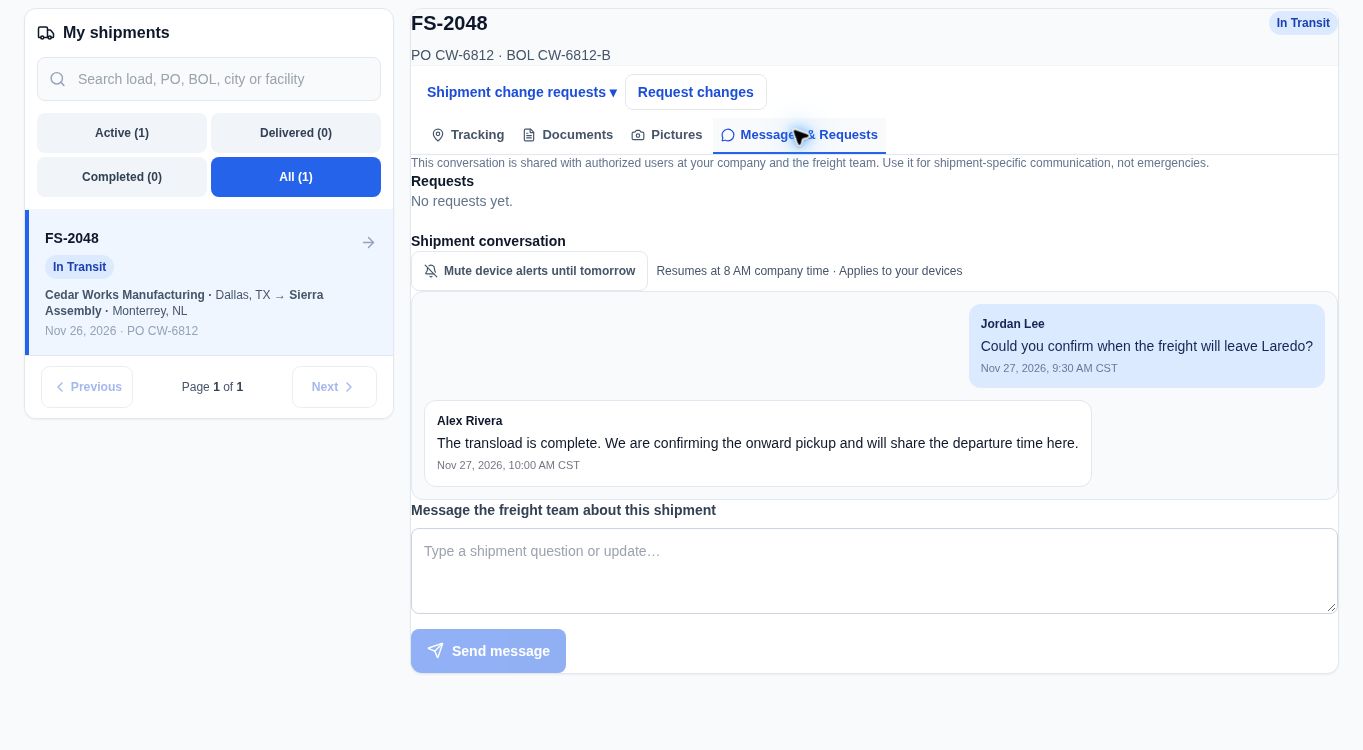
Messages & Requests keeps the customer’s question and the freight team’s answer together. In this example, the shipper asks when the freight will leave Laredo. Staff reply in the same shipment conversation.
Customers can also request a status update, an ETA, a missing document or other assistance. Staff can work through those requests without relying on a separate email thread to identify the load. Authorized users at the customer’s company share the conversation.
 Enlarge screenshot
Share the paperwork the customer needs
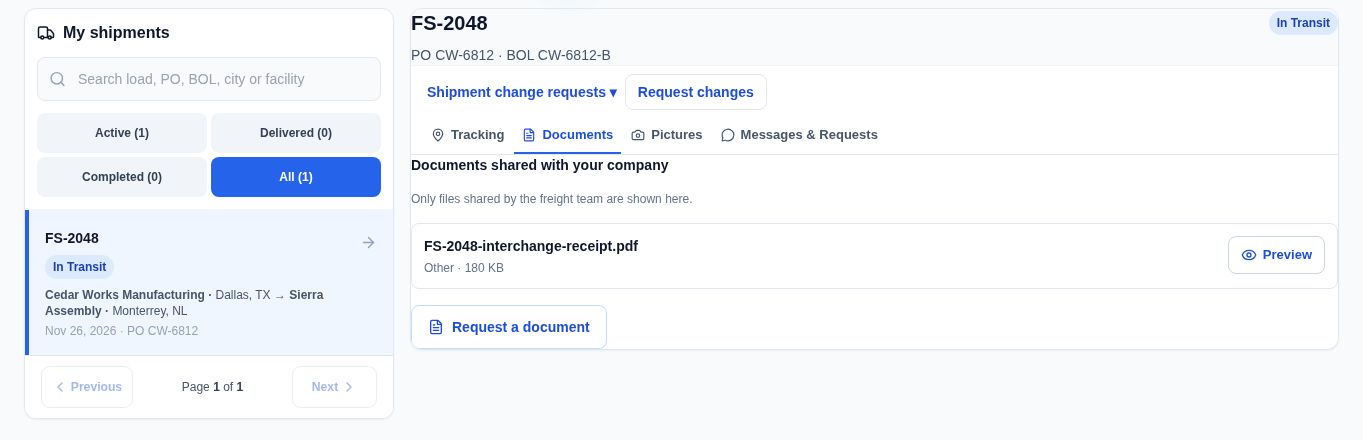
The Documents tab contains files the freight team has shared with that customer. A carrier uploading an interchange receipt or POD does not automatically make it available to the shipper. Staff review the file and make the sharing decision.
The same distinction applies to load pictures. The portal also provides access to the customer’s completed agreements. A signing invitation goes to the designated signer when an agreement needs acceptance.
 Enlarge screenshot
Let each customer choose email notifications
Customer users can opt in to email notifications for portal messages and shared tracking updates. A tracking email contains the load reference and the actual shared update, so the recipient can read the essential information directly.
The tracking notification is tied to first sharing an update on an active shipment. It is not a promise that every internal note, later edit or carrier report will be emailed. Staff retain control over what becomes customer-visible.
Begin the next load from the portal
Customers can submit quote requests, review available quotes and provide shipment details for the freight team to review. Staff can use a quote as the starting point for an order, checking the current addresses, appointments and cargo before dispatch.
Common questions
Does a customer see carrier costs or private carrier chat?
The customer portal is a customer-facing view. Internal costs and private carrier conversations are not part of that view.
Does uploading a file send it to the customer?
No. Uploading, sharing and notifying are separate steps. Staff choose customer visibility, and the recipient’s notification preferences determine applicable emails.