
Shipment inbox
Put the email beside the shipment it belongs to
An interchange receipt, appointment change or POD often arrives by email. FreightScale gives staff a shared place to read it, connect it to the right load and save the useful paperwork.
Connect one incoming mailbox for the company
An authorized administrator configures one incoming mailbox for the company. Supported setup options include a Google or Google Workspace connection and password-based IMAP. Access to the imported mailbox is restricted to the staff allowed to use it.
Choose the shared operations mailbox that receives shipment correspondence, then confirm it can sync before relying on the workflow. Incoming mailbox setup and the app’s outgoing email delivery configuration are separate concerns.
Match the load number, then check the result
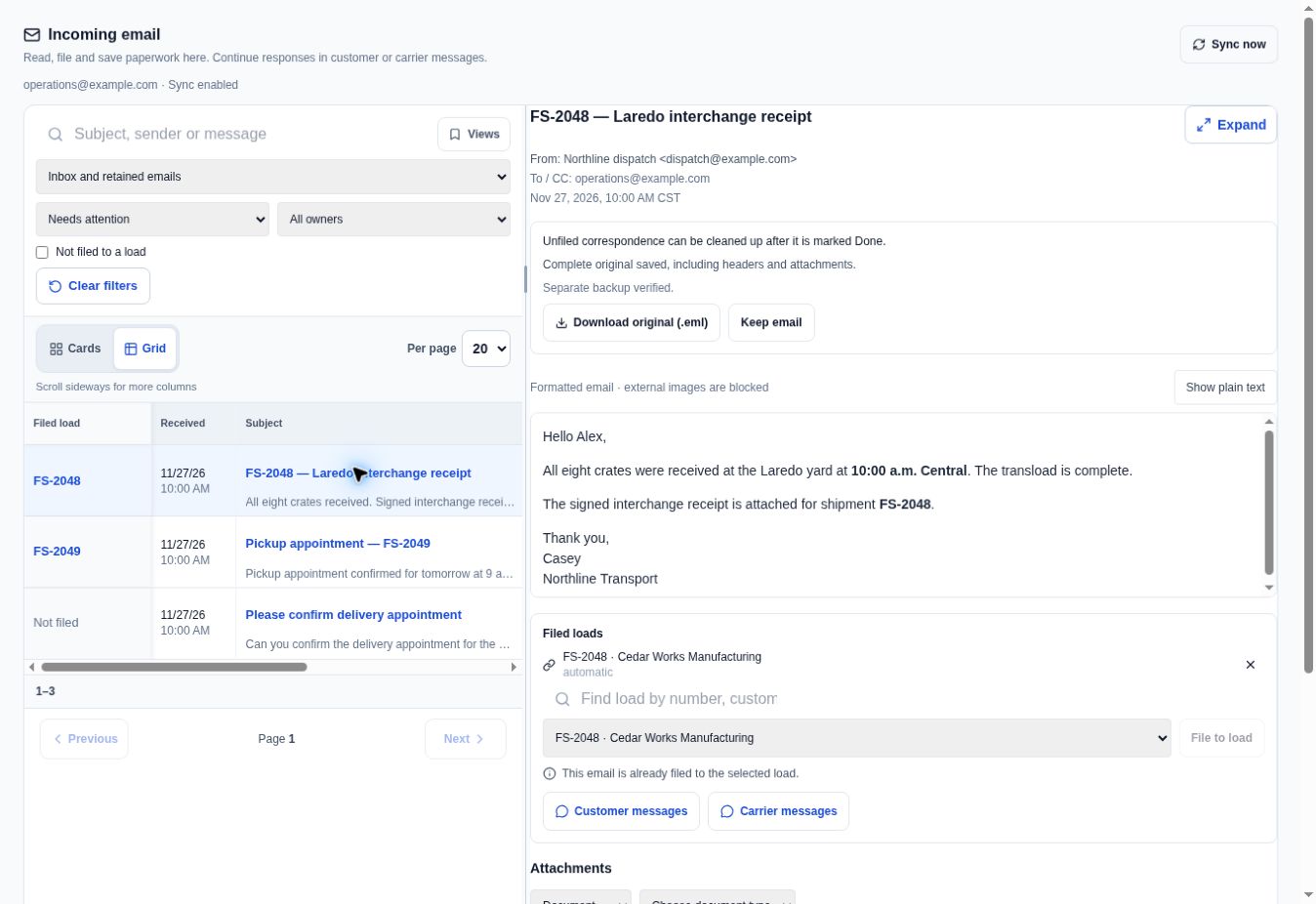
Optional automatic filing looks for a single unambiguous shipment-number match in the email subject. The sample subject “FS-2048 — Laredo interchange receipt” gives the system a clear reference to work with.
Messages without a clear match remain available for staff to file manually. A route description or a mention of a shipment somewhere in the body is not a guarantee of automatic filing. Staff can search for the correct load and review or change the links.
 Enlarge screenshot
Read the message in context
The inbox presents the email list alongside a reading pane. Staff can view the message’s formatted body or switch to plain text, inspect its sender and recipients, and see which loads it has been filed to.
The shipment’s Incoming Email tab provides another route to its correspondence. Customer messages and Carrier messages lead into the existing shipment conversations when staff are ready to follow up. The incoming inbox currently focuses on reading and filing; it is not a general email reply-and-forward composer.
Save the attachment to the selected load
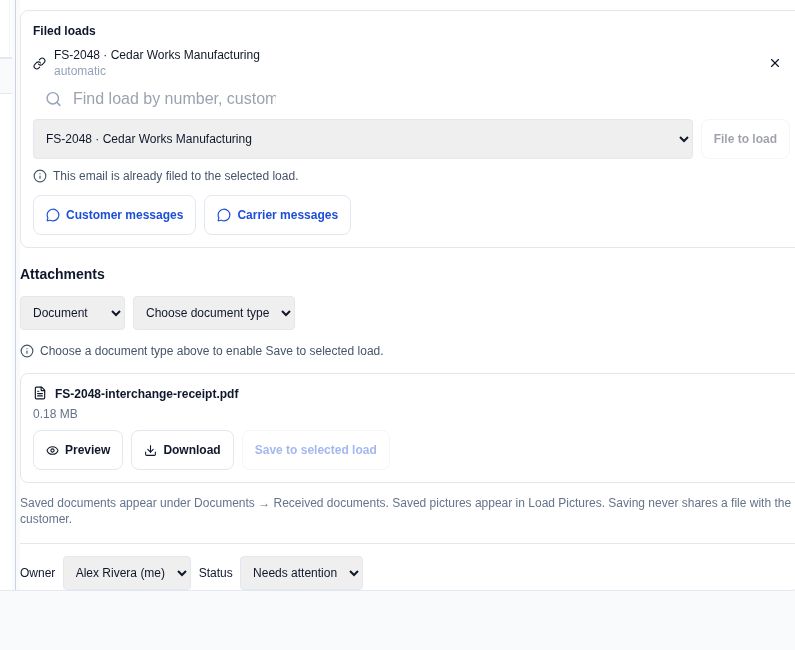
Preview the attachment, choose the load and document type, then save it to the shipment. Documents go into the received-documents workflow; supported image attachments can be saved as load pictures.
Saving an attachment does not share it with the customer. Staff review the saved file and use the shipment’s sharing controls when it is appropriate to make it available outside the freight team.
 Enlarge screenshot
Separate filing from handling the work
An email can be correctly filed and still need a response. Assign an owner and use Needs attention, Waiting and Done to describe its handling status. Filters for ownership, unfiled mail and status help staff find the next item to work.
For FS-2048, Alex can save the interchange receipt, check the onward pickup and mark the message Done after the necessary follow-up. The email, paperwork and shipment conversation remain connected.
Common questions
Can staff file a message manually?
Yes. Staff can search for a load, file the email to it and review the existing links. Ambiguous messages do not need to be forced into an automatic match.
Will incoming email replace our email client?
The current inbox is designed for reading, filing and saving paperwork. Use the existing shipment conversations for portal responses and your email client for general email replies or forwarding.