
Integrated carrier opportunities
Offer the right freight to your own carrier network
Post a saved quote or unassigned order to selected carriers, Carrier Groups or all active carriers in your company, with controlled access and expiration.
At a glance
How it works
- Choose the opportunity
Start with a saved quote or unassigned order and review the load summary.
- Choose the audience
Select carriers or groups, then set the pickup window, expiration and public message.
- See the carrier’s view
Eligible carriers see the opportunity and contact your team; staff still handle assignment.
This is your company’s carrier-network board. Posting does not book a carrier or publish to an outside marketplace.
Read the detailed guideA three-step screenshot tour
From your order to the carrier’s board
Follow fictional order FS-2049. Select a screenshot to inspect the real interface; the tour does not change any loads.
Step 1 of 3
Start with the load already in your workspace
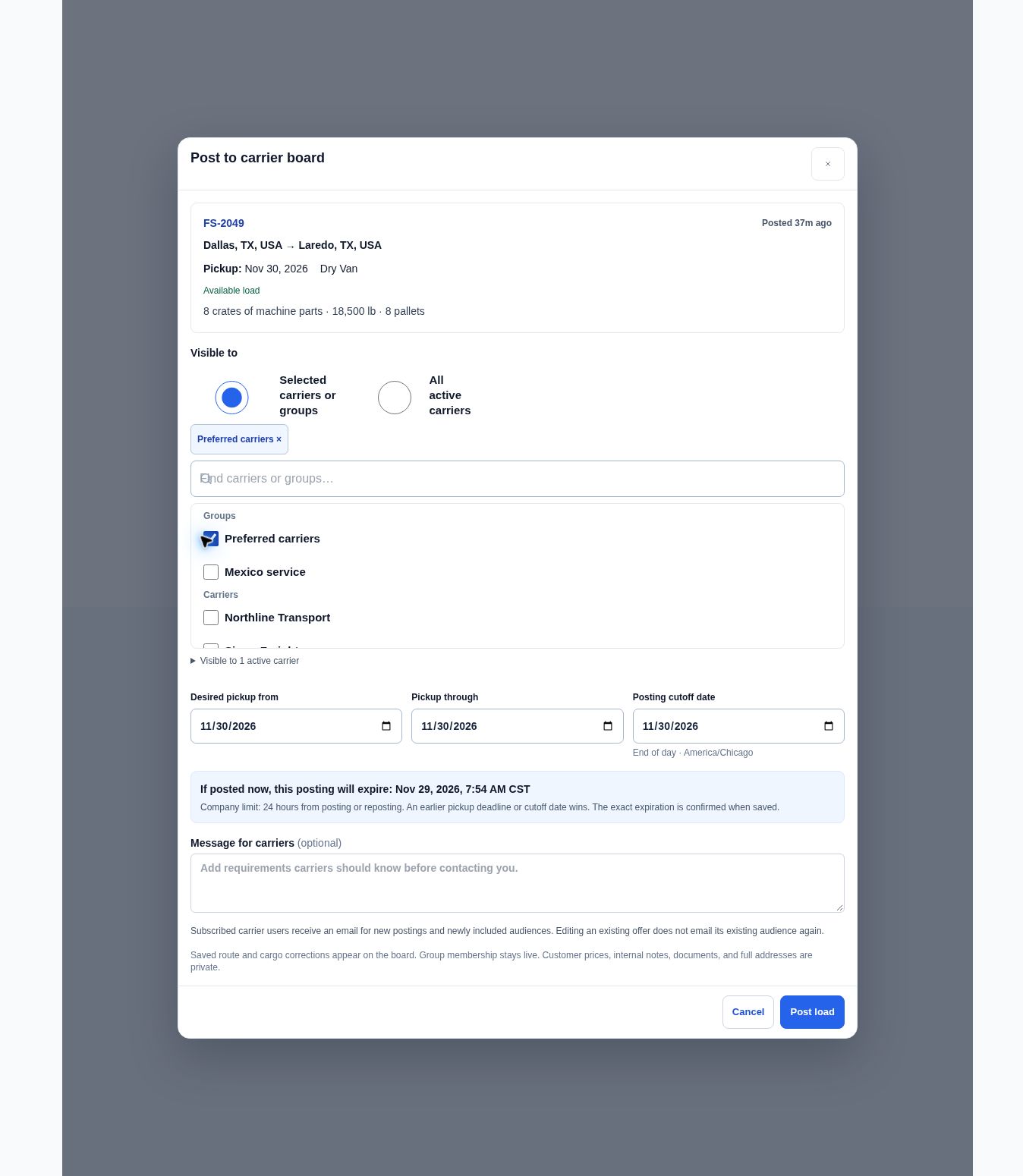
The posting editor shows unassigned order FS-2049, from Dallas to Laredo. Review the route, cargo and equipment summary before offering it to carriers.
Look at the order reference and route at the top of the screenshot. A saved quote can also be posted, with a label identifying it as potential work.
 Enlarge screenshot
Step 2 of 3
Decide who can see this opportunity
In the same editor, the example selects the Preferred carriers group. Staff can choose individual carriers, groups or all active carriers, and review the pickup dates, cutoff and public message.
Look at the audience selector below the route. The editor shows the effective expiration; posting still leaves carrier assignment with your team.
Enlarge screenshotStep 3 of 3
The carrier sees the opportunities available to them
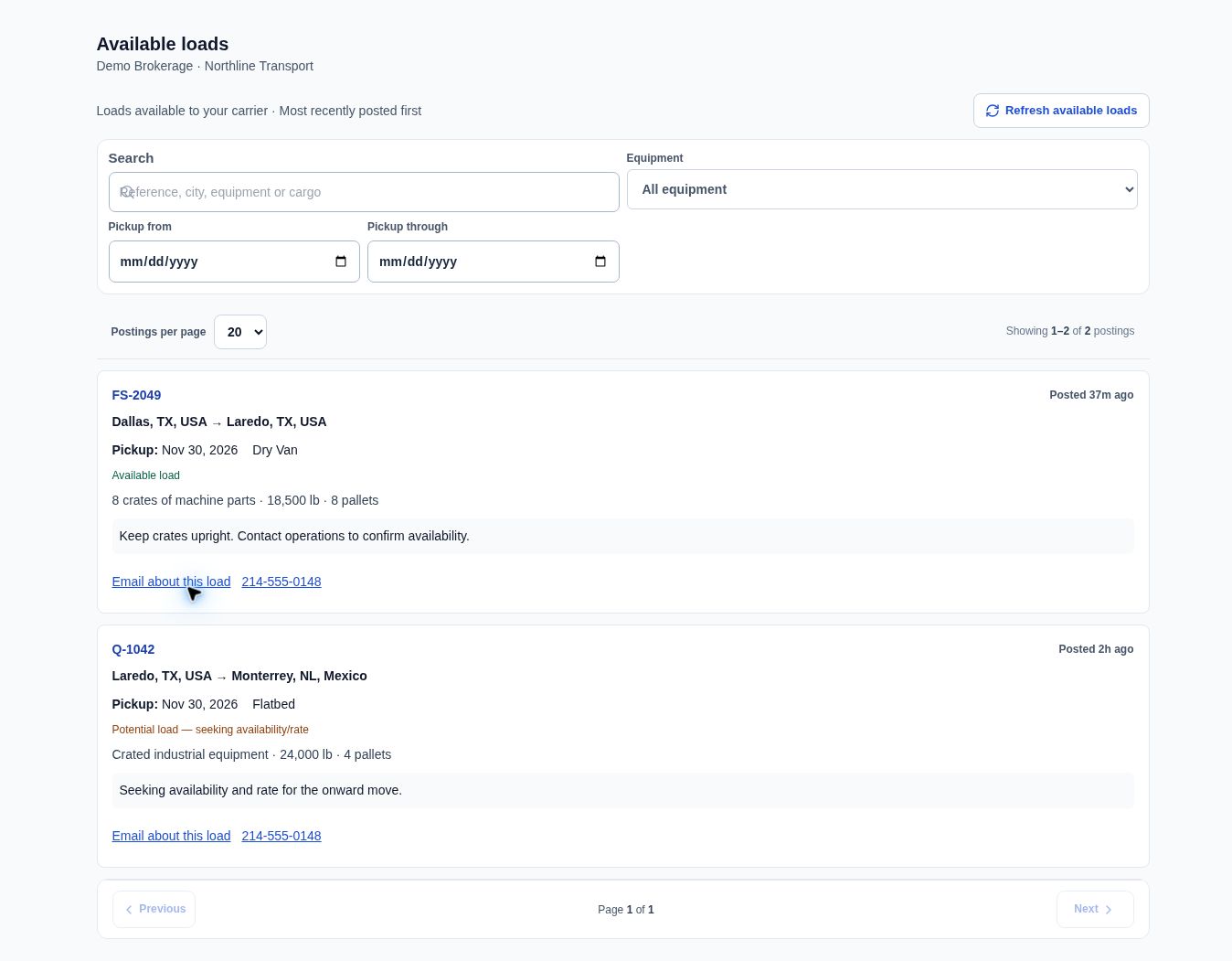
The carrier board shows FS-2049 as an available load and Q-1042 as potential work. Carriers can filter the list and contact your team about a reference.
Customer identities, commercial prices, full street addresses and internal documents stay out of the posting. Viewing a load or contacting staff does not book it.
 Enlarge screenshot
Post from the quote or order you already have
Staff can post a saved quote or an unassigned order from the quote header or the order’s Dispatch tab. Review the route and cargo, set the pickup window and cutoff, and add a message explaining requirements the carrier should know.
A quote is labeled as potential work seeking availability or a rate. An order is labeled as an available load. Posting does not assign a carrier or confirm a booking; staff continue the dispatch workflow when a carrier is selected.
Customize who sees each opportunity
Choose individual carriers, Carrier Groups, or All active carriers in your company. Groups can represent your own categories, such as Mexico service, heavy haul or preferred carriers. A carrier matching any selected carrier or group can see the posting.
Group membership is checked as it changes. All active carriers also includes carriers added or reactivated later. Staff can preview the board for a particular carrier to check the audience before sharing access.
Give carriers a useful, limited view
Carrier Portal → Available loads shows the offers visible to that carrier, with search, equipment and pickup-date filters and pagination. Staff can also create a carrier-specific link and PIN for access without a portal account, then revoke it when appropriate.
The board shows route cities, pickup dates, cargo and equipment information, the posting’s age, the public message and your company’s contact details. Customer identities, commercial prices, street addresses, internal notes and documents stay out of the posting. Carriers can contact your team about the displayed reference.
Let carrier users choose email alerts
Each carrier portal user can opt in to emails about newly available postings visible to their carrier. The preference defaults off and is separate from chat notifications. An alert directs the user to the authenticated carrier board.
New postings and newly included audiences can notify eligible subscribers. Ordinary edits do not email the existing audience again. When deliberately reposting, staff can separately choose whether to notify subscribers again.
Keep expired or assigned freight off the board
Company settings control maximum post age, with a default of 24 hours. An earlier pickup-window end or selected cutoff takes precedence. The posting editor shows the effective expiration in company time.
Assignment and applicable status changes withdraw an order. Removing an assignment does not automatically repost it. Staff can withdraw or deliberately repost an opportunity; ordinary edits preserve its original age. A single, unambiguous quote-to-order conversion can carry the posting forward, while ambiguous reuse requires review.
Common questions
Is this connected to a public load-board marketplace?
This guide describes your company’s integrated carrier-network board. Posting here does not publish to an outside load-board marketplace.
Does All active carriers make the load public?
No. It expands the audience to active carriers in your company. Carrier portal or carrier-specific link-and-PIN access is still required.
Will a carrier see my customer rate or full pickup address?
The board exposes the selected route and cargo summary, dates and public message. Commercial prices, customer identities and full street addresses are excluded.
Does a carrier viewing or emailing about a post book the load?
No. Staff still select and assign the carrier through dispatch.